RK Astral GCash Withdrawal: Step-by-Step Guide and Processing Times
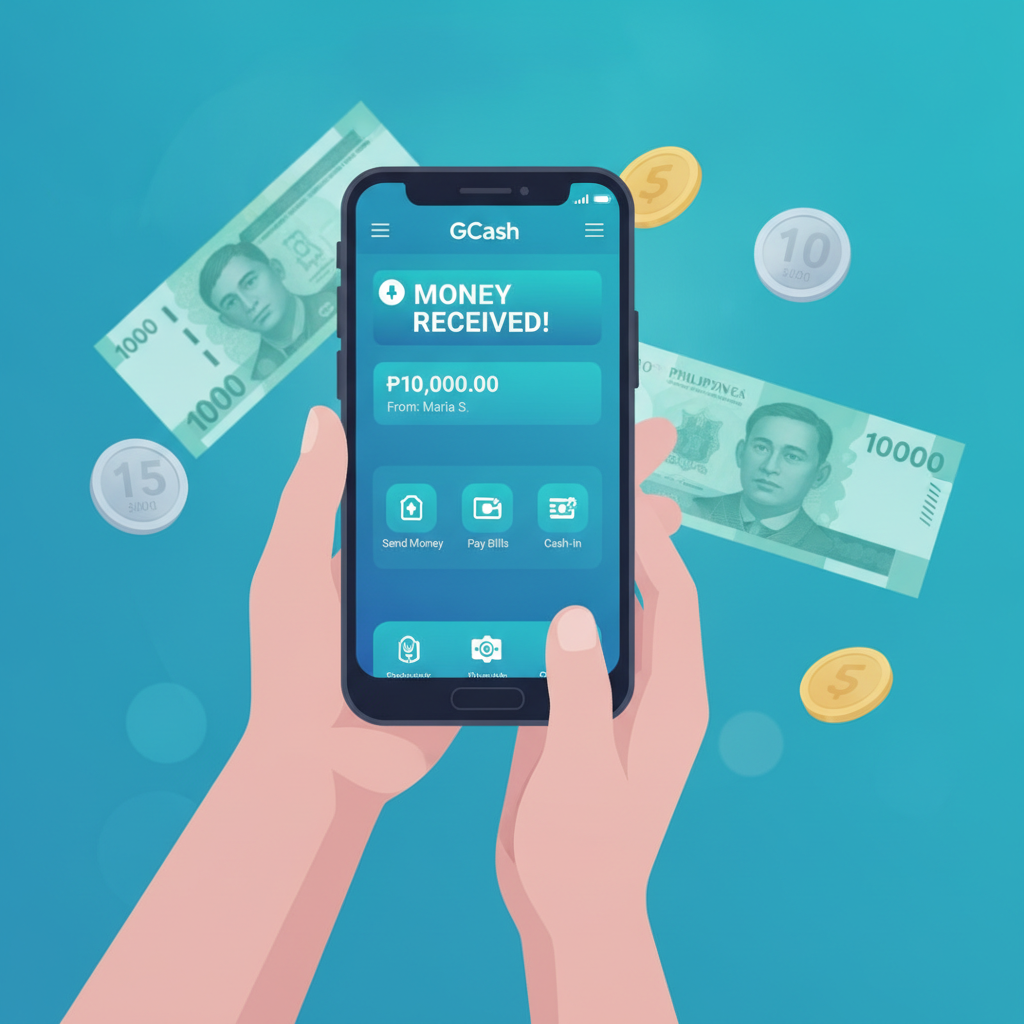
RK Astral GCash Withdrawal: Step-by-Step Guide and Processing Times
GCash is one of the fastest ways to cash out winnings from RK Astral. This guide walks through the exact withdrawal steps, explains how long it takes, and shows how to fix common errors when moving money from your RK Astral account to your GCash wallet.
How to Request a GCash Withdrawal from RK Astral
Follow these steps to cash out from RK Astral to your GCash account:
- Log in to your RK Astral account on the app or mobile browser.
- Tap the menu icon (usually three lines or your account balance) and select Withdraw or Cashout.
- Choose GCash from the list of withdrawal methods. If you don't see GCash listed, confirm that you've previously deposited using GCash at least once—many platforms require your first deposit to match your first withdrawal method.
- Enter the exact GCash mobile number linked to your GCash account. Double-check the 11-digit number (starting with 09) before proceeding. Any mismatch will cause the withdrawal to fail or be delayed.
- Enter the withdrawal amount in pesos. Make sure the amount falls within the minimum and maximum limits (covered below).
- Review the transaction summary. Check the amount, GCash number, and any fees. RK Astral typically does not charge a withdrawal fee for GCash, but confirm on the summary screen.
- Enter your account password or PIN if prompted. Some accounts require two-factor authentication via SMS.
- Submit the request. You'll receive an on-screen confirmation and, in most cases, an SMS or in-app notification confirming that your withdrawal is being processed.
Keep your transaction reference number. You'll need it if you contact support about a delayed or failed cashout.
GCash Withdrawal Processing Time
Most GCash withdrawals from RK Astral are processed within a few minutes to 1 hour during business hours. In some cases, processing can take up to 24 hours, especially if:
- You submitted the request late at night or on a weekend
- Your account is flagged for routine verification
- RK Astral is experiencing high withdrawal volume
Instant transfers (under 5 minutes) are common for accounts that have completed ID verification and have a history of successful deposits and withdrawals.
If your GCash wallet does not reflect the funds after 24 hours, check your RK Astral transaction history to confirm the status. If the status shows "Completed" but the money hasn't arrived, contact GCash customer service. If the status shows "Pending" or "Processing," reach out to RK Astral support with your transaction reference number.
GCash Withdrawal Limits
RK Astral sets both per-transaction and daily withdrawal limits for GCash. While exact figures can change and may vary by account level or VIP tier, typical limits include:
- Minimum withdrawal: PHP 100
- Maximum per transaction: PHP 10,000 to PHP 50,000 (varies by account status)
- Daily limit: PHP 50,000 to PHP 100,000 (may be higher for VIP members)
To check your specific limits, log in and navigate to the Withdraw page—limits are usually displayed before you enter an amount.
If you need to withdraw more than the single-transaction maximum, you can split the amount into multiple requests throughout the day, as long as you stay within the daily cap.
Account verification matters. Players who have uploaded a valid government ID and completed phone-number verification typically enjoy higher limits and faster processing.
Common GCash Withdrawal Errors and Fixes
"Invalid GCash Number"
Cause: The mobile number you entered doesn't match a registered GCash account, or you made a typo.
Fix: Verify the 11-digit number in your GCash app (tap your profile to see your registered mobile number). Re-enter it carefully in RK Astral. If the number is correct and the error persists, your GCash account may not be fully verified—open the GCash app and complete any pending verification steps.
"Withdrawal Amount Below Minimum" or "Exceeds Maximum Limit"
Cause: The amount you entered is outside the allowed range.
Fix: Check the minimum (usually PHP 100) and maximum limits displayed on the withdrawal page. Adjust your amount accordingly. If you need to cash out a larger sum, split it across multiple transactions or contact support to request a limit increase.
"Insufficient Balance"
Cause: Your RK Astral account balance is lower than the amount you're trying to withdraw, or pending bets have locked part of your balance.
Fix: Check your available balance (not total balance) on the account dashboard. Cancel any open or unsettled bets if you want to free up locked funds, then retry the withdrawal.
"Withdrawal Declined" or "Transaction Failed"
Cause: Multiple possible reasons—mismatched account details, incomplete KYC (Know Your Customer) verification, or a technical issue on RK Astral's or GCash's end.
Fix:
- Confirm that the name on your RK Astral account matches the name on your GCash account. Mismatches can trigger fraud-prevention blocks.
- Check your email or SMS for any verification requests from RK Astral. Complete any pending ID or address verification.
- Wait 15–30 minutes and retry. Temporary server issues sometimes resolve on their own.
- If the problem continues, contact RK Astral support through live chat or email, providing your transaction reference number and a screenshot of the error message.
"Pending" Status for More Than 24 Hours
Cause: Manual review by RK Astral's finance or compliance team, especially for first-time withdrawals or unusually large amounts.
Fix: Wait up to 48 hours for first-time cashouts. After that, contact RK Astral support with your transaction ID. Be ready to provide a photo of your valid ID if you haven't done so already. Once verified, future withdrawals typically process much faster.
GCash Wallet Not Receiving Funds (Status Shows "Completed")
Cause: The money left RK Astral's system but hasn't arrived in GCash due to a delay on GCash's side, or the wrong mobile number was used.
Fix:
- Open your GCash app and check transaction history under "Activity."
- If there's no incoming record, double-check the mobile number you submitted to RK Astral.
- Contact GCash customer service (dial *143# or use the GCash app chat). Provide the transaction reference number and the sender name (RK Astral or its payment processor).
- Also notify RK Astral support so they can trace the transaction on their end.
Tips for Smooth GCash Withdrawals
- Use the same GCash number for deposits and withdrawals. This minimizes verification delays.
- Complete account verification early. Upload your government ID and confirm your mobile number before you need to cash out.
- Withdraw during business hours (roughly 9 AM to 6 PM, Monday to Friday) for the fastest processing.
- Keep your GCash app updated. An outdated version can sometimes cause payment-receipt issues.
- Check your GCash wallet limits. If your GCash account is not fully verified, it may have a monthly incoming-money cap. Verify your GCash account (upload an ID in the GCash app) to raise limits.
Fees for GCash Withdrawals
RK Astral does not typically charge a fee for GCash withdrawals, and GCash itself does not charge a fee to receive funds. However, always check the transaction summary screen before confirming your cashout—any applicable fees will be shown there.
If you see an unexpected deduction, contact RK Astral support for clarification.
21+ and Responsible Gambling Reminder
RK Astral is for players aged 21 and over only. Online betting should be a form of entertainment, not a way to make money. Set a budget before you play, and never chase losses. If you feel that gambling is becoming a problem, take a break or seek help from a responsible-gambling support service. Withdraw your winnings regularly to help maintain control over your bankroll.
This is an independent guide. RK Astral is a third-party platform. Always verify current withdrawal limits, processing times, and terms directly on the RK Astral site or by contacting their customer support.